
Download RationalPlan Multi Project – Free Project Management, Resource Sharing & Reporting Tool
RationalPlan Multi Project is a robust, free‑to‑try project management solution designed for teams that need to juggle several initiatives at once. Whether you are overseeing construction sites, software development sprints, or marketing campaigns, this application gives you a single pane of glass to allocate resources, monitor budgets, and generate detailed reports. Its intuitive desktop interface works equally well as a stand‑alone program or as a client of RationalPlan Server, letting you tap into a centralized repository of all company projects. The tool emphasizes visual planning through smart charts, Gantt diagrams, and workload overviews, making it easier to break down massive tasks into manageable activities. With a focus on security, regular updates, and cross‑platform compatibility (Windows, macOS, and Linux), RationalPlan Multi Project positions itself as a versatile, professional‑grade app that scales from small teams to enterprise environments.
Key Features of RationalPlan Multi Project
- Multi‑Project Dashboard: A side panel that displays an at‑a‑glance view of every active project, including status, critical path, and upcoming milestones.
- Resource Pool Management: Share and allocate staff, equipment, and material across projects, with automatic conflict detection.
- Budget & Cost Tracking: Real‑time financial monitoring, expense categorisation, and variance analysis to keep projects within budget.
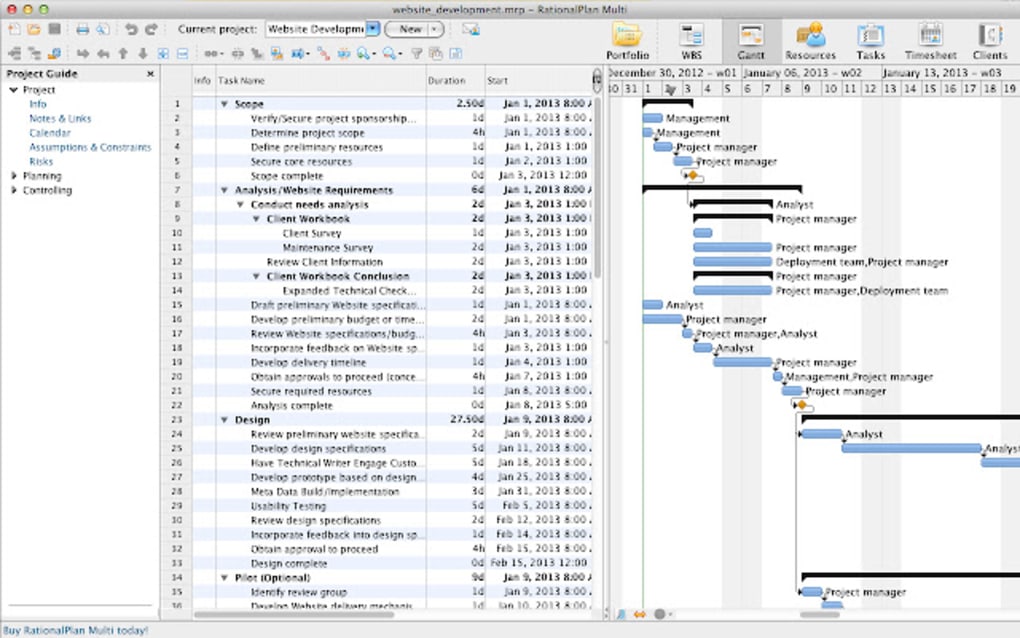
- Gantt & Timeline Charts: Drag‑and‑drop scheduling, dependency linking, and critical path highlighting for visual planning.
- Customizable Reports: Generate printable PDF or Excel reports for task completion, resource utilisation, and financial performance.
- Integration with RationalPlan Server: Sync local projects with a central server for version control, collaboration, and backup.
- Smart Alerts & Notifications: Although the free version does not push pop‑up alerts, it provides colour‑coded status flags that highlight overdue tasks.
- Multi‑Language Support: Interface available in several languages, facilitating global teams.
- Secure Data Handling: Encrypted project files and optional two‑factor authentication when connected to RationalPlan Server.
- Frequent Updates: Automatic update checks ensure you always have the latest security patches and feature enhancements.
Installation, Usage & Compatibility
Step‑by‑Step Installation Guide
1. Download the Installer: Visit the official RationalPlan website and click the “Download Free Trial” button for your operating system. The file is a standard .exe for Windows, .dmg for macOS, and .tar.gz for Linux.
2.
Run the Installer: On Windows, double‑click the .exe and follow the wizard. macOS users drag the app icon into the Applications folder. Linux users extract the archive and run the install.sh script with sudo privileges.
3. Accept the License Agreement: The free‑to‑try version requires acceptance of the EULA, which outlines usage limits and upgrade paths.
4.
Choose Installation Path: The default location works for most users, but you can customise the folder if you have specific directory policies.
5. Complete Installation: Once the wizard finishes, launch RationalPlan Multi Project from the Start menu, Dock, or terminal shortcut.
6. Register Your Trial: The first launch prompts you to create a trial account using an email address.
This activates the 30‑day free trial and unlocks all features except server integration, which remains disabled until a license key is entered.
Getting Started with the Interface
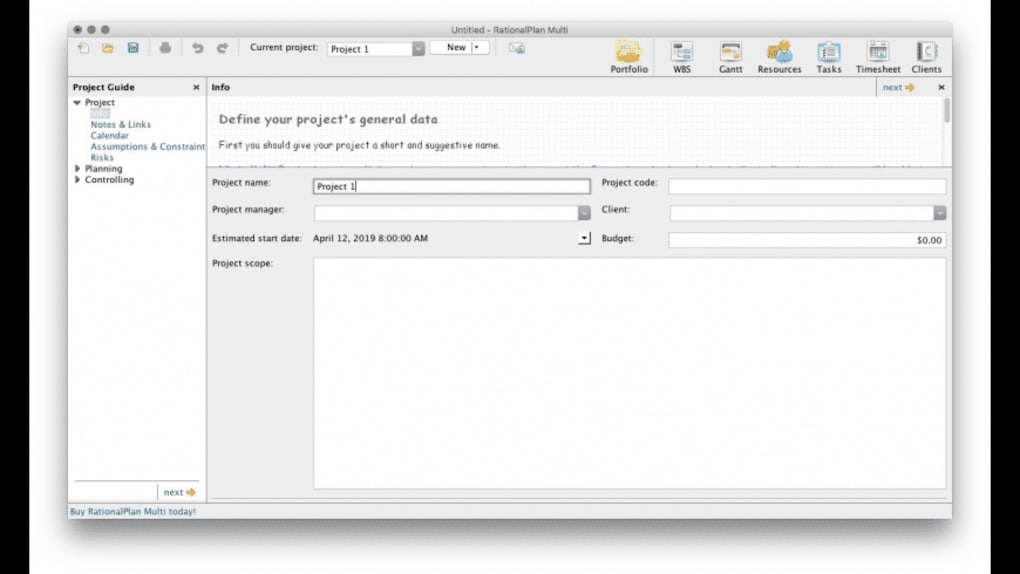
Upon opening the program, you are greeted by a clean workspace divided into three primary zones: the left‑hand navigation panel, the central Gantt view, and the right‑hand property inspector. The navigation panel lists all projects in a hierarchical tree, allowing you to expand each project to see its phases, tasks, and resources. Clicking a task opens the property inspector where you can set start/end dates, assign resources, define dependencies, and input cost estimates.
The central Gantt chart automatically updates to reflect any changes, and the toolbar provides quick actions such as “Add Task”, “Link Dependency”, and “Export Report”. For beginners, the built‑in “Help Wizard” offers step‑by‑step tutorials, complete with screenshots and sample data sets. Advanced users can switch to “Expert Mode” to access custom scripting, API calls, and integration with third‑party tools like Microsoft Teams or Slack.
Supported Operating Systems
RationalPlan Multi Project runs on the three major desktop platforms:
- Windows 10/11 (64‑bit): Fully supported, with optional integration into Active Directory for enterprise authentication.
- macOS 10.15 (Catalina) and later: Native Cocoa interface ensures smooth performance on Apple hardware.
- Linux (Ubuntu 18.04+, Fedora 30+, Debian): Packaged as a .deb or .rpm for easy installation; requires GTK+ 3.22 or newer.
Pros, Cons & Frequently Asked Questions
Pros
- Comprehensive multi‑project overview in a single dashboard.
- Robust resource sharing and conflict detection.
- Detailed budgeting tools with real‑time variance tracking.
- High‑quality Gantt and workload charts for visual planning.
- Secure file handling and optional two‑factor authentication.
- Free 30‑day trial with full feature set (except server sync).
- Regular updates keep the software secure and feature‑rich.
Cons
- No built‑in push notifications for upcoming deadlines in the free version.
- Mobile access limited to web portal; no native iOS/Android app.
- Learning curve for users unfamiliar with Gantt‑style scheduling.
- Server integration requires a paid license.
- Advanced custom scripting is only available in “Expert Mode”.
Frequently Asked Questions
Is RationalPlan Multi Project truly free?
The application offers a 30‑day free trial that unlocks all features except server synchronization. After the trial, you can continue using the basic desktop version for free, but advanced collaboration tools require a paid license.
Can I import projects from Microsoft Project?
Yes, RationalPlan Multi Project supports import of .mpp files, as well as CSV and XML formats, allowing a smooth migration from MS Project or other planning tools.
How does resource conflict detection work?
When you assign a resource to overlapping tasks across different projects, the software highlights the conflict in red and suggests alternative allocation dates or resources.
Is there a cloud backup option?
Cloud backup is available through RationalPlan Server. By connecting the desktop client to the server, all project files are stored centrally with automatic versioning.
What kind of support does the free trial include?
Trial users receive access to the online knowledge base, community forum, and email support with a 24‑hour response window. Phone support is reserved for licensed customers.
Conclusion – Should You Download RationalPlan Multi Project?
RationalPlan Multi Project strikes a solid balance between feature depth and usability, making it a compelling choice for managers who need to oversee several inter‑related initiatives without juggling multiple disparate tools. Its free trial gives you full access to advanced budgeting, resource pooling, and visual planning, so you can evaluate whether the workflow fits your organization’s needs. While the lack of native mobile apps and push notifications may be a drawback for highly distributed teams, the secure desktop environment, regular updates, and optional server integration provide a pathway to enterprise‑grade collaboration when you’re ready to upgrade. If you’re looking for a secure, cross‑platform solution that lets you break down complex projects into actionable tasks, generate professional reports, and keep an eye on financial health, RationalPlan Multi Project deserves a spot in your software toolbox. Download the free trial today, explore the multi‑project dashboard, and decide if it’s the right fit for your next big undertaking.







